
Few things are more frustrating than watching your iPhone battery percentage drop rapidly, especially when you’re not doing anything intensive. Whether your iPhone battery suddenly drains overnight, loses charge quickly after an iOS update, or struggles to last through the day, the issue is usually caused by a combination of software settings, background activity, battery health, or aging hardware.
The good news is that in most cases, you can significantly improve battery life without replacing your iPhone.
In this detailed guide, we’ll cover the most effective ways to fix iPhone battery draining too fast, explain what actually causes the issue, and share practical tips to improve battery health long term.
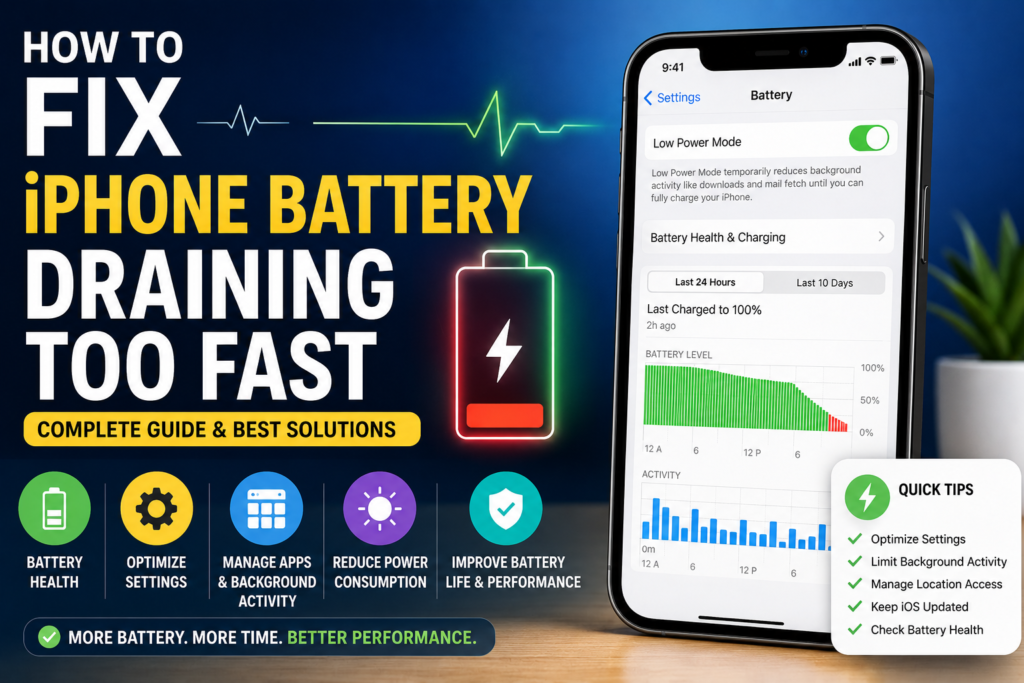
Why Is Your iPhone Battery Draining So Fast?
Battery drain can happen for several reasons, including:
- Background apps constantly running
- High screen brightness
- Poor network signal
- Battery-intensive features like Location Services
- Software bugs after iOS updates
- Aging battery health
- Always-On Display and widgets
- Excessive notifications and syncing
Modern iPhones are powerful devices, but features like 5G, AI-powered background tasks, live widgets, and advanced displays can consume battery quickly if not managed properly.
1. Check Battery Health First
Before changing settings, check your battery condition.
Go to:
Settings → Battery → Battery Health & Charging
Look at:
- Maximum Capacity
- Peak Performance Capability
If battery health is:
- 90% or above → Battery is still in good condition
- 80–89% → Noticeable battery decline may begin
- Below 80% → Battery replacement is recommended
Apple considers batteries below 80% degraded enough to impact performance and battery life significantly.
2. Find Battery-Hungry Apps
One of the fastest ways to fix iPhone battery drain is identifying apps consuming excessive power.
Go to:
Settings → Battery
Scroll down to see:
- Battery usage by app
- Screen activity
- Background activity
Common battery-draining apps include:
- Snapchat
- YouTube
- Google Maps
- Gaming apps
- Video editing apps
If an app shows unusually high Background Activity, restrict it.
3. Disable Background App Refresh
Background App Refresh allows apps to constantly update content even when you’re not using them.
This feature heavily affects battery life.
Go to:
Settings → General → Background App Refresh
You can:
- Turn it OFF completely
- Disable it for selected apps
For most users, disabling it for social media and shopping apps improves battery life noticeably.
4. Reduce Screen Brightness
The display is one of the biggest battery consumers on any iPhone.
To optimize battery life:
- Lower brightness manually
- Enable Auto-Brightness
Go to:
Settings → Accessibility → Display & Text Size → Auto-Brightness
Also enable:
- Dark Mode
- Reduce White Point (optional)
OLED iPhones benefit significantly from Dark Mode because black pixels consume less power.
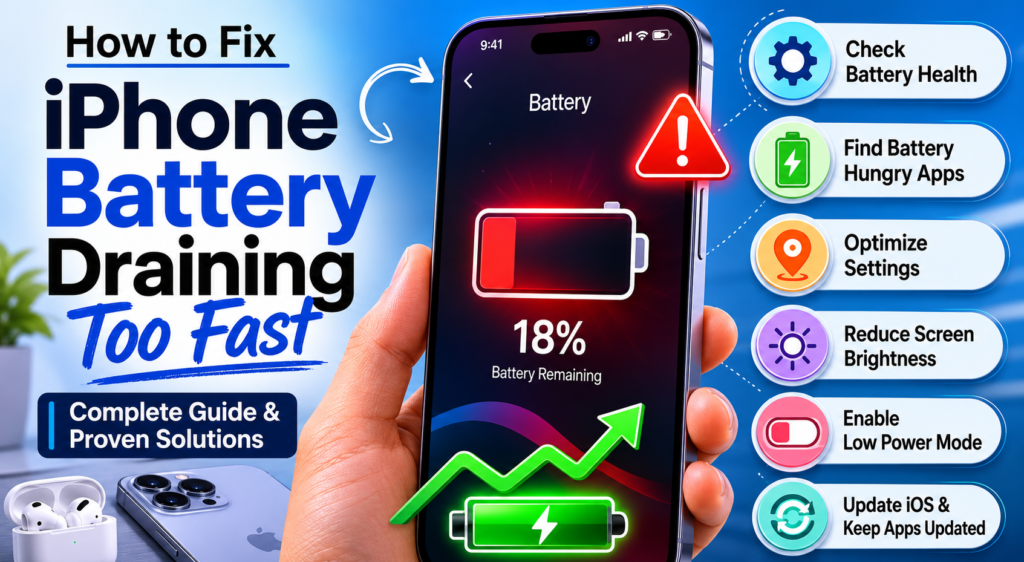
5. Turn Off Always-On Display
On supported Pro models, Always-On Display continuously refreshes parts of the screen, which affects battery life.
Go to:
Settings → Display & Brightness → Always On Display
Turn it OFF if:
- You want maximum battery life
- You rarely use lock screen widgets
6. Disable Unnecessary Location Services
Many apps constantly track location in the background, even when not needed.
Go to:
Settings → Privacy & Security → Location Services
Set most apps to:
- “While Using the App”
instead of - “Always”
Also disable:
- Precise Location for unnecessary apps
Apps like food delivery, weather, and social media apps often drain battery through continuous GPS usage.
7. Switch From 5G to LTE (If Needed)
5G provides faster internet but consumes more battery, especially in areas with unstable coverage.
Go to:
Settings → Cellular → Cellular Data Options → Voice & Data
Select:
- LTE
or - 5G Auto instead of 5G On
This can significantly improve standby battery life.
8. Enable Low Power Mode
Low Power Mode reduces:
- Background activity
- Mail fetching
- Visual effects
- Auto downloads
Go to:
Settings → Battery → Low Power Mode
You can also enable it from Control Center.
This is one of the easiest ways to instantly reduce battery drain.
9. Turn Off Push Mail
Push email constantly checks servers in real time, which drains battery.
Go to:
Settings → Mail → Accounts → Fetch New Data
Switch:
- Push → OFF
Use:
- Fetch every 30 minutes or hourly
This improves battery life, especially for users with multiple email accounts.
10. Update iOS to the Latest Version
Battery drain issues are often caused by software bugs.
Apple regularly releases updates that:
- Fix overheating
- Improve standby efficiency
- Optimize background processes
Go to:
Settings → General → Software Update
Install the latest stable version of iOS.
However, immediately after a major update, temporary battery drain is normal because the iPhone reindexes files and optimizes apps.
11. Disable Live Activities & Widgets
Widgets and Live Activities continuously refresh data in the background.
These include:
- Weather widgets
- Sports scores
- Food delivery tracking
- Lock screen widgets
Remove unnecessary widgets to reduce background usage.
12. Limit Notifications
Frequent notifications constantly wake the display and processor.
Go to:
Settings → Notifications
Disable notifications for:
- Shopping apps
- Games
- Promotional apps
- Unnecessary social apps
This not only saves battery but also reduces distractions.
13. Check for Overheating
Heat is one of the biggest enemies of battery health.
Your iPhone may drain faster if:
- Used while charging
- Exposed to sunlight
- Running heavy gaming sessions
- Recording long 4K videos
Tips:
- Remove thick cases during charging
- Avoid charging under pillows or blankets
- Keep iPhone away from direct heat
Excessive heat accelerates battery degradation permanently.
14. Restart Your iPhone Regularly
Sometimes apps or background processes get stuck and continue draining power.
A simple restart can:
- Clear temporary bugs
- Stop rogue background processes
- Improve battery efficiency
Restart your iPhone at least once every few days.
15. Reset Settings (Advanced Fix)
If battery drain started suddenly after an update or app installation, resetting settings may help.
Go to:
Settings → General → Transfer or Reset iPhone → Reset → Reset All Settings
This:
- Won’t delete personal data
- Resets system settings only
It can resolve hidden software conflicts causing battery drain.
16. Replace the Battery If Needed
If your battery health is below 80%, software tweaks will only help temporarily.
Signs you need battery replacement:
- Rapid percentage drops
- Random shutdowns
- Overheating
- Poor standby time
- Slow performance
Replacing the battery often makes an older iPhone feel new again.
Best Daily Habits to Improve iPhone Battery Life
Here are some long-term battery-saving habits:
Use Optimized Battery Charging
This reduces battery aging by learning your charging routine.
Avoid Charging to 100% Constantly
Keeping the battery between 20–80% helps reduce wear over time.
Use Original or Certified Chargers
Cheap chargers can damage battery health and cause overheating.
Avoid Extreme Temperatures
Both excessive heat and cold negatively affect lithium-ion batteries.
Keep Apps Updated
Developers regularly release battery optimization updates.
Common Myths About iPhone Battery Drain
Myth 1: Closing Apps Always Saves Battery
Not always. Constantly force-closing and reopening apps can sometimes use more power.
Myth 2: Charging Overnight Damages Battery
Modern iPhones stop charging intelligently once full.
Myth 3: Dark Mode Doesn’t Matter
On OLED iPhones, Dark Mode can noticeably improve battery life.
When Should You Worry About Battery Drain?
You should investigate further if:
- Battery drains even in airplane mode
- iPhone overheats during normal use
- Battery percentage jumps suddenly
- Phone shuts down unexpectedly
- Battery health declines very quickly
These may indicate:
- Hardware issues
- Faulty apps
- Battery degradation
Final Verdict
If your iPhone battery is draining too fast, the issue is usually caused by a mix of:
- Background activity
- Display settings
- Network usage
- Battery aging
Fortunately, most battery problems can be fixed by optimizing settings, reducing unnecessary background activity, and improving charging habits.
For the biggest improvements:
- Check Battery Health
- Disable unnecessary background features
- Reduce brightness and location usage
- Use Low Power Mode strategically
- Replace the battery if health is below 80%
With the right adjustments, you can dramatically improve your iPhone’s battery life and overall performance without upgrading to a new device.
Read more Top Reasons Why Your Phone Is Overheating – and How to Fix It
FAQs – How to Fix iPhone Battery Draining Too Fast
Why is my iPhone battery draining so fast suddenly?
Sudden battery drain is usually caused by background apps, iOS bugs, poor network signal, or battery degradation.
Does iOS update cause battery drain?
Yes, temporary battery drain after an iOS update is normal because the iPhone reindexes apps and files in the background.
Is 5G draining my iPhone battery?
Yes, 5G consumes more battery than LTE, especially in areas with weak signal strength.
Should I replace my iPhone battery at 80% health?
Yes, Apple recommends battery replacement once maximum capacity drops below 80%.
Does Dark Mode save battery on iPhone?
Yes, Dark Mode helps save battery on OLED iPhones because black pixels consume less power.
How can I improve iPhone battery life overnight?
Enable Low Power Mode, disable Background App Refresh, reduce notifications, and turn off unnecessary location access before sleeping.