
Google Chrome has finally introduced the Vertical Tabs feature in its latest 2026 update, making it easier to manage multiple tabs without clutter. Instead of showing tabs at the top, Chrome now lets you move them to a side panel, improving productivity and saving screen space.
What Are Vertical Tabs in Chrome?
Vertical Tabs allow you to display all open tabs in a sidebar (left or right) instead of the traditional horizontal layout. This makes it easier to:
- View full tab titles
- Switch between tabs quickly
- Manage multiple tabs without confusion
This feature is especially useful for users who keep many tabs open at once.
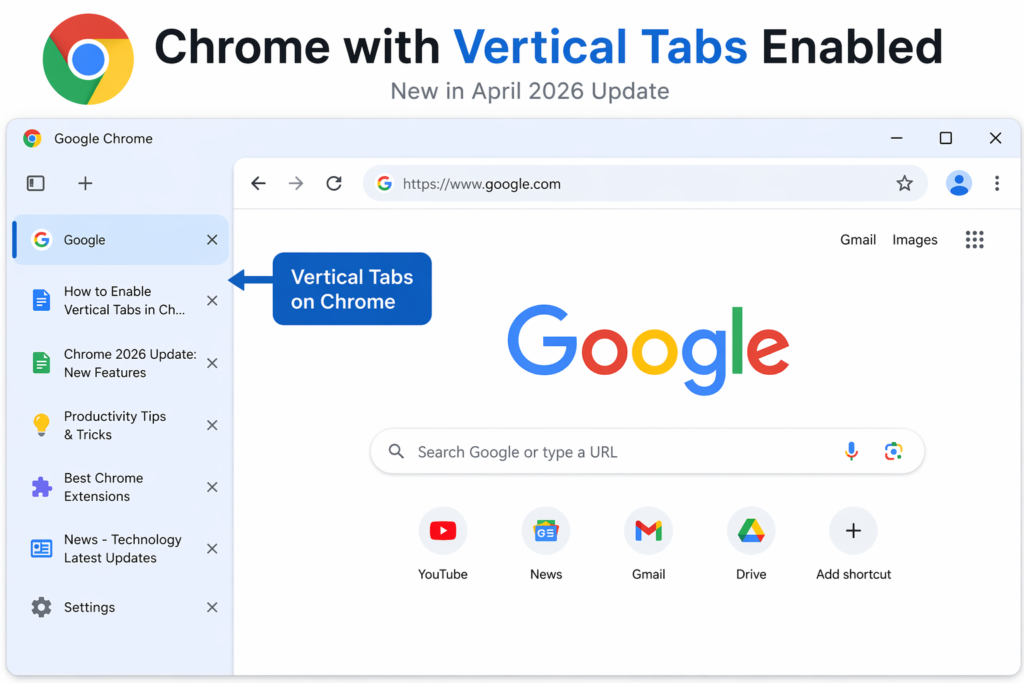
How to Enable Vertical Tabs in Google Chrome
Follow these simple steps:
Step 1: Enable via Chrome Flags
- Open Chrome and type:
chrome://flags/or chrome://flags/#vertical-tabs - Search for “Vertical Tabs”
- Enable the flag (#vertical-tabs)
- Click Relaunch Chrome
- Right-click on the tab bar and select “Move Tabs to the Side”
Step 2: Using Chrome Settings
- Open Google Chrome
- Go to Settings → Appearance
- Look for Tab Position / Vertical Tabs option
- Select “Side” to enable vertical tabs
Why Use Vertical Tabs?
- Better use of widescreen displays
- Cleaner and more organized browsing
- Easier tab navigation with long titles
- Reduced clutter compared to horizontal tabs
Why Is Your Laptop So Slow? Proven Fixes, Upgrades, and Expert Tips
Final Thoughts
The new Chrome Vertical Tabs feature (April 2026 update) is a major productivity upgrade, especially for power users. While it may still be rolling out or hidden behind flags in some versions, enabling it takes just a few clicks.
If you often struggle with too many tabs, this feature is definitely worth trying.
Read more on TheNextGadgets.com
FAQs: Enable Vertical Tabs in Google Chrome
What are vertical tabs in Google Chrome?
Vertical tabs in Google Chrome display your open tabs in a sidebar instead of the top bar. This makes it easier to manage multiple tabs, view full titles, and switch between them quickly.
How do I enable vertical tabs in Chrome?
To enable vertical tabs in Google Chrome:
- Open
chrome://flags/ - Search for Vertical Tabs
- Enable the feature
- Relaunch Chrome
- Right-click the tab bar and select Move Tabs to Side
Is vertical tabs available in Chrome by default?
Vertical tabs are rolling out in recent updates of Google Chrome (April 2026). Some users may need to enable it manually using Chrome Flags until it becomes widely available.
Why should I use vertical tabs in Chrome?
Vertical tabs in Google Chrome help improve productivity by organizing tabs in a clean sidebar layout, making them ideal for users who work with many tabs.
Can I disable vertical tabs in Chrome?
Yes, you can disable vertical tabs in Google Chrome anytime by switching back to the default tab layout in settings or disabling the feature from Chrome Flags.