
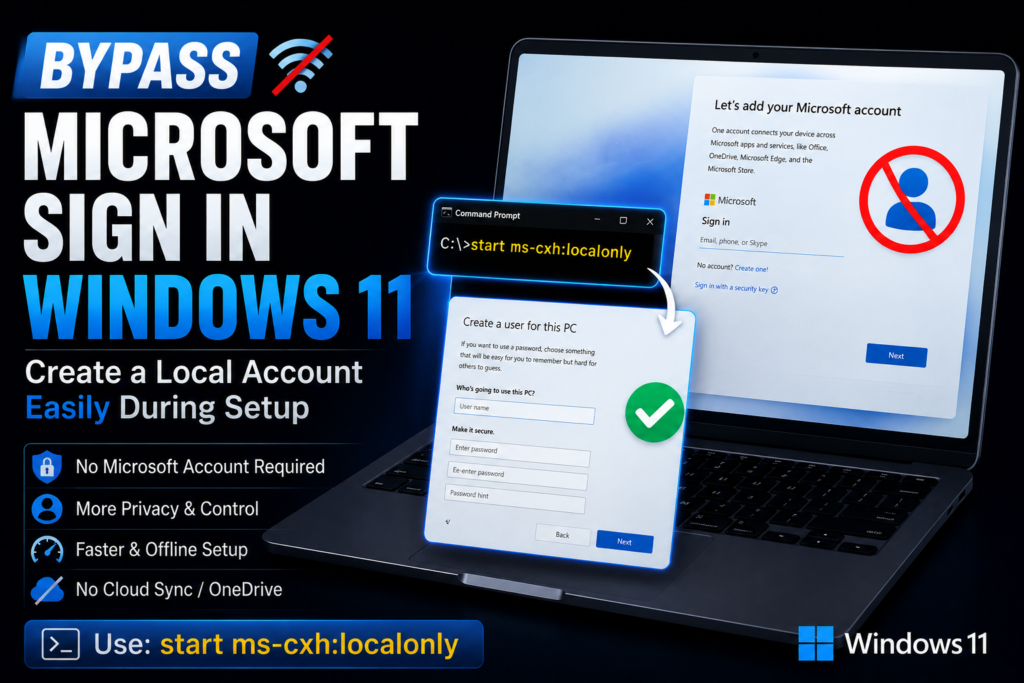
If you’re looking to bypass Microsoft sign in Windows 11, you’re not alone. Many users prefer setting up their PC with a local account instead of linking it to a Microsoft account during installation. Whether you’re concerned about privacy, want a faster setup process, or simply prefer keeping your device independent of cloud services, Windows 11 still offers ways to create a local account. One of the most effective methods involves using the ms-cxh:localonly command during the setup process, allowing you to complete the installation without immediately signing in with a Microsoft account.
Windows 11 strongly encourages users to sign in with a Microsoft account during the initial setup process. While a Microsoft account offers benefits such as OneDrive integration, Microsoft Store access, device synchronization, and cloud backups, many users prefer the simplicity, privacy, and control of a traditional local account.
Fortunately, there is a method that allows you to create a local account during Windows 11 setup without immediately signing into a Microsoft account. One of the most effective approaches involves using the command:
start ms-cxh:localonly
This guide explains how the method works, when it can be used, its benefits, potential limitations, and what to do if it doesn’t work on your version of Windows 11.
Why Use a Local Account in Windows 11?
A local account works entirely on your PC and does not require linking your device to Microsoft’s cloud services.
Many users prefer a local account because it offers:
- Greater privacy
- Less cloud synchronization
- Faster setup process
- Reduced data sharing
- No dependency on internet connectivity
- Better control over account settings
For home users, developers, IT professionals, and privacy-conscious individuals, a local account can be a practical choice.
What Is start ms-cxh:localonly?
The command:
start ms-cxh:localonly
launches a Windows setup component that allows the creation of a local user account during the Out-of-Box Experience (OOBE), which is the first-time setup process you see after installing Windows.
Instead of continuing through Microsoft’s account sign-in flow, this command opens a local account creation window where you can enter:
- Username
- Password (optional)
- Security questions
After completing the process, Windows continues setup using the newly created local account.
How to Use start ms-cxh:localonly During Windows 11 Setup
Follow these steps carefully.
Step 1: Begin Windows 11 Installation
Install Windows 11 normally from a USB drive or installation media.
Proceed until you reach the Microsoft account sign-in screen.
This is typically where Windows asks:
- Sign in with Microsoft
- Create a Microsoft account
- Connect to the internet
Step 2: Open Command Prompt
When you’re on the Microsoft account sign-in screen:
Press:
Shift + F10
A Command Prompt window should appear.
On some laptops, you may need:
Shift + Fn + F10
depending on your keyboard configuration.
Step 3: Run the Command
In Command Prompt, type:
start ms-cxh:localonly
Then press Enter.
If supported by your Windows build, a local account creation window will appear.
Read more Why Is Your Laptop So Slow? Proven Fixes, Upgrades, and Expert Tips
Step 4: Create Your Local Account
Enter:
- Desired username
- Password (optional)
- Security questions
Click Next.
Windows will continue setup using the newly created local account.
Step 5: Complete Setup
Finish the remaining Windows setup screens.
Once completed, you’ll arrive at the Windows desktop without needing a Microsoft account.
Benefits of Using a Local Account
Many users intentionally choose local accounts for several reasons.
Enhanced Privacy
A local account minimizes the amount of personal information linked to cloud services.
Your settings remain primarily on the device rather than being synchronized across Microsoft’s ecosystem.
Faster Setup
You can complete installation without:
- Creating a Microsoft account
- Verifying email addresses
- Entering phone numbers
- Setting up cloud services
Reduced Background Synchronization
Microsoft accounts often sync:
- Settings
- Browser data
- Passwords
- OneDrive files
A local account avoids unnecessary syncing for users who prefer a simpler environment.
Better for Dedicated Systems
Local accounts are popular on:
- Test machines
- Gaming PCs
- Office workstations
- Development systems
- Laboratory computers
These devices may not need cloud integration.
What If the Command Doesn’t Work?
Microsoft periodically updates Windows 11 setup procedures.
As a result, some installation builds may restrict or modify certain setup options.
If the command does not launch the local account wizard:
- Verify that you’re using a supported Windows build.
- Ensure the command is entered exactly as written.
- Restart setup and try again.
Because Microsoft occasionally changes OOBE behavior, availability can vary between releases.
Can You Switch to a Microsoft Account Later?
Yes.
Creating a local account during setup does not permanently prevent Microsoft account usage.
You can link a Microsoft account later by going to:
Settings → Accounts → Your Info
From there, Windows allows you to sign in with a Microsoft account whenever you choose.
This flexibility gives users the best of both worlds.
Local Account vs Microsoft Account
| Feature | Local Account | Microsoft Account |
|---|---|---|
| Works Offline | Yes | Limited |
| OneDrive Integration | No | Yes |
| Settings Sync | No | Yes |
| Microsoft Store Access | Limited | Full |
| Privacy Control | Higher | Lower |
| Setup Speed | Faster | Slower |
| Cloud Backup | No | Yes |
For users who prioritize privacy and simplicity, a local account remains an attractive option.
Is Using a Local Account Safe?
Yes.
Local accounts are fully supported by Windows and remain a legitimate way to use the operating system.
However, you should:
- Use a strong password
- Enable device encryption if available
- Keep Windows updated
- Create recovery options
Good security practices are important regardless of account type.
Frequently Asked Questions
What does start ms-cxh:localonly do?
It launches a Windows account creation interface that allows users to create a local account during setup rather than signing in with a Microsoft account.
Does this method work on every version of Windows 11?
Not necessarily. Microsoft occasionally changes setup procedures and account requirements between Windows releases.
Can I switch to a Microsoft account later?
Yes. Windows allows users to connect a Microsoft account at any time after installation.
Will I lose any features by using a local account?
Some cloud-based services such as OneDrive synchronization, automatic settings sync, and certain Microsoft Store features may be limited.
Is a local account better for privacy?
Many users consider local accounts more private because they reduce cloud synchronization and data sharing.
Do I need an internet connection to use a local account?
No. One of the advantages of a local account is that it can be used without an active internet connection.
Final Verdict: Bypass Microsoft Sign In Windows 11
For users who prefer greater privacy, a faster setup process, and more control over their PC, using a local account remains a practical choice. The start ms-cxh:localonly command provides a convenient way to create a local account during Windows 11 setup when supported by the installed build.
While Microsoft increasingly promotes account-based services and cloud integration, Windows still offers flexibility for users who want a more traditional desktop experience. If your goal is to use Windows 11 without immediately linking your device to an online account, this method can help streamline the setup process while keeping you in control of how your PC is configured.