
There is nothing more frustrating than hearing your dashcam beep incessantly or seeing the dreaded “Memory Card Error” or “SD Card Full” message just as you start your engine. In 2026, dashcams are more essential than ever for insurance claims and road safety, but their high-resolution demands can push even the best memory cards to their limits.
If you are struggling with a dashcam that won’t record, this comprehensive guide will walk you through every step to fix memory card errors, choose the right hardware, and ensure you never miss a critical moment on the road.
You’re driving along, glance at your dashcam, and notice a blinking light or a message on screen: Memory Card Error. Or maybe you went to check your footage after an incident and found nothing there at all.
It’s frustrating. But the good news is — most memory card errors in dashcams are fixable. And in most cases, you don’t need to buy a new card straight away.
This guide walks you through every fix, in order, from the simplest to the most drastic.
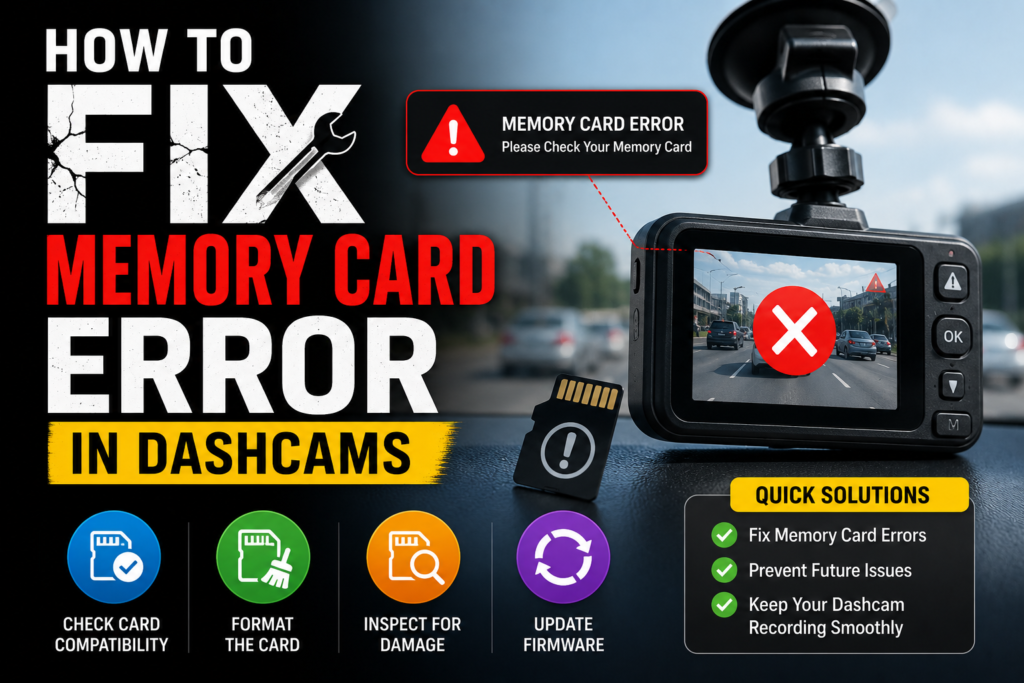
Why Does This Error Happen?
Before jumping into fixes, it helps to understand what’s actually going wrong.
Your dashcam writes data to the microSD card constantly — every second you’re driving. Over time, this creates a few common problems:
- File system fragmentation — thousands of small clips and G-sensor saved files pile up and clog the card’s file system
- Corrupted files — a sudden power cut (like turning the ignition off mid-write) leaves incomplete files behind
- Card wear — flash memory has a finite number of write cycles, and dashcams burn through them faster than most devices
- Wrong card type — standard consumer microSD cards aren’t built for continuous loop recording and start throwing errors within months
- Loose connection — the card isn’t seated properly in the slot
Most errors fall into one of these categories. Work through the steps below and you’ll likely solve it without spending a penny.
Why Does My Dashcam Say Memory Card Error?
Before we dive into the fixes, it’s important to understand why these errors occur. Unlike a camera that takes occasional photos, a dashcam is a high-intensity device. It constantly writes, erases, and rewrites large video files in a continuous loop (Botslab, 2025).
The most common causes for memory card failure include:
- Card Wear and Tear: Standard SD cards have a finite number of “write cycles” and eventually wear out (Botslab, 2025).
- Locked Files: G-sensors often lock footage during hard braking or bumps. If these “protected” files fill the card, the dashcam cannot perform its loop recording (Recoverit, 2026).
- Incompatibility: Using a card with a slow write speed (below Class 10/U3) or a capacity that exceeds the dashcam’s limits (Miofive, 2025).
- File System Corruption: Improper shutdowns or pulling the card out while it’s recording can corrupt the file structure.
Also Read Best SD Card for Dashcam (Guide)
Step-by-Step: How to Fix Memory Card Error
Follow these troubleshooting steps in order. Most users find that Step 2 resolves 90% of all issues.
1. Power Cycle and Re-seat the Card
Sometimes the simplest solution is the most effective. Dust or a loose connection can cause communication glitches between the card and the camera (Botslab, 2025).
- Turn off the dashcam and unplug the power.
- Eject the microSD card and inspect it for physical damage or debris.
- Wait one minute for residual power to discharge.
- Firmly re-insert the card until it clicks and power the device back on.
2. Format the SD Card (The “Gold Standard” Fix)
Formatting erases all data and recreates a clean file structure. Crucial: Always format the card inside the dashcam menu rather than on a computer. This ensures the card uses the specific file system (FAT32 or exFAT) required by your device (Botslab, 2025).
- Navigate to Settings > Format SD Card.
- Confirm the action.
- Pro Tip: Experts recommend formatting your dashcam card at least once a month to prevent file table corruption (Botslab, 2025).
3. Manage Your G-Sensor and “Locked” Files
If your dashcam keeps saying “Card Full” despite loop recording being on, your G-sensor might be too sensitive (Recoverit, 2026).
- Connect the card to a computer and look for a folder named “RO” (Read Only) or “Emergency.”
- Manually delete these files or back them up.
- Go into your dashcam settings and lower the G-Sensor sensitivity so every speed bump doesn’t create a permanent, undeletable file (Recoverit, 2026).
4. Update Dashcam Firmware
In some cases, the error isn’t the card—it’s the camera. Manufacturers release firmware updates to fix bugs that cause storage glitches or to improve compatibility with newer, high-capacity cards (Recoverit, 2026).
- Check the manufacturer’s website for your specific model.
- Download the update onto your SD card and follow the on-screen prompts to install.
Choosing the Right SD Card for Your Dashcam
If the steps above don’t work, your card may have reached the “end of its useful life” (Garmin Customer Support, n.d.). Not all SD cards are created equal. For a dashcam, you must use a High-Endurance microSD card.
| Feature | Standard SD Card | High-Endurance SD Card |
| Best For | Cameras/Phones | Dashcams/Security Cams |
| Write Cycles | Low | Very High |
| Heat Resistance | Minimal | High (Up to 140°F+) |
| Video Quality | 1080p | 4K / Multi-channel |
Top Recommendations for 2026:
- SanDisk MAX Endurance: Designed for thousands of hours of 4K recording (Sandisk, n.d.).
- Samsung PRO Endurance: Highly rated for extreme temperature stability.
Also Read Best microSD Card for Dashcam — Don’t Buy the Wrong One
Advanced Troubleshooting: Testing on a Computer
If your dashcam still won’t recognize the card, use a computer to determine if the card is “bricked” (permanently dead).
- Windows: Right-click the drive and select Properties > Tools > Check to scan for drive errors.
- Mac: Use Disk Utility and run “First Aid.”
- If the computer cannot see the card at all or reports “0MB” capacity, the internal NAND flash memory has failed and the card must be replaced
Step 1: Re-Seat the microSD Card
Start with the most obvious fix — it’s surprising how often this works.
Power off your dashcam completely. Remove the microSD card, wait a few seconds, then firmly push it back in until you feel or hear it click. Power the camera back on and see if the error clears.
Dashcams vibrate constantly while driving, and over time a card can work itself slightly loose. A loose connection causes read/write errors that look exactly like a faulty card.
Step 2: Clean the Card and Slot
Dust and dirt on the card’s gold contacts can interrupt the connection between the card and the camera.
Remove the card and gently wipe the gold contacts with a dry, lint-free cloth or a clean pencil eraser. Don’t use water or cleaning fluid. Check the card slot in the dashcam too — a small puff of air can clear out any debris.
Reinsert the card and power on.
Step 3: Format the Card Inside the Dashcam
This is the fix that solves the majority of memory card errors — and most people skip straight past it.
Formatting wipes the card clean and rebuilds the file system from scratch. It clears fragmented files, corrupted clips, and locked G-sensor footage that has built up over weeks or months of recording.
Important: format the card using your dashcam’s own menu, not your computer. The dashcam formats the card in the exact file system it needs (usually FAT32 or exFAT depending on capacity). Formatting on a PC sometimes uses the wrong format, which causes its own errors.
Here’s how to do it on most dashcams:
- Go to Settings on your dashcam
- Find Storage, Memory Card, or Format Card — the exact label varies by brand
- Select Format and confirm
- Wait for it to complete, then restart the camera
On Nextbase, BlackVue, Viofo, and Thinkware cameras, this option is usually two or three taps into the settings menu. Check your manual if you can’t find it.
Note: Formatting deletes everything on the card. If there’s footage you need to keep, copy it to your computer first.
Step 4: Format the Card on Your Computer (If Step 3 Didn’t Work)
If your dashcam can’t complete the format — or if it throws an error during the process — try formatting from a computer instead.
On Windows:
- Insert the card using an SD adapter
- Open File Explorer, right-click the card, select Format
- Choose FAT32 for cards 32 GB and under, or exFAT for 64 GB and above
- Tick Quick Format, click Start
On Mac:
- Insert the card and open Disk Utility
- Select the card from the left panel
- Click Erase, choose MS-DOS (FAT) for 32 GB and under or ExFAT for 64 GB and above
- Click Erase
After formatting on your computer, reinsert the card into the dashcam and let the camera do one more format from its own menu. This double-format process often clears stubborn errors that a single format misses.
Step 5: Test the Card in Another Device
At this point you want to know whether the problem is the card itself or the dashcam.
Insert the microSD card into your phone, laptop, or another camera. Can you read it? Can you write to it? If it throws errors in other devices too, the card is damaged and needs replacing.
If it reads and writes fine in another device, the issue is more likely with your dashcam’s card slot or firmware — move on to Step 6.
Step 6: Check for a Firmware Update
Dashcam manufacturers regularly release firmware updates that fix bugs, including memory card compatibility issues. An outdated firmware version can cause error messages with cards that should work perfectly.
Visit your dashcam manufacturer’s website, find your exact model, and download the latest firmware. Most brands — Nextbase, BlackVue, Viofo, Garmin, Thinkware — provide step-by-step firmware update instructions on their support pages.
This takes about ten minutes and fixes more problems than most people expect.
Step 7: Check Card Compatibility
Not all microSD cards work with all dashcams. Some cameras have a maximum supported capacity — if you’ve inserted a 512 GB card into a dashcam that only supports 256 GB, you’ll get errors every time.
Check your dashcam’s manual or the manufacturer’s website for the maximum supported card size and the recommended speed class. If your card exceeds those specs, you need a different card.
Also check whether your dashcam manufacturer has a list of approved or tested cards. BlackVue, Viofo, and Nextbase all publish compatibility lists. If your card isn’t on the list, it may simply not be compatible even if it looks right on paper.
Step 8: Replace the Card
If you’ve worked through every step above and the error persists, the card is almost certainly worn out or damaged beyond recovery.
This is more common than people realise. Standard consumer microSD cards — the kind designed for phones — typically fail within 6 to 12 months of daily dashcam use. Even good quality cards eventually reach the end of their write cycle life.
When replacing, don’t just buy the same type of card again. Buy a high-endurance microSD card specifically designed for continuous recording. The Samsung PRO Endurance, SanDisk MAX Endurance, and SanDisk High Endurance are the most widely recommended options. They use more durable flash memory and last significantly longer under the constant loop recording a dashcam demands.
Step 9: Inspect the Dashcam’s Card Slot
If a brand new high-endurance card also throws an error, the problem isn’t the card — it’s the dashcam.
Physically inspect the card slot. Look for bent pins, debris, or visible damage. If the pins inside the slot are bent, that’s a hardware fault. Depending on the age and value of your dashcam, it may be worth sending it in for repair or simply replacing the camera altogether.
How to Prevent Memory Card Errors in the Future
Fixing the error once is good. Not getting it again is better.
Format your card monthly. Set a reminder. A monthly format from inside the dashcam clears fragmented files before they cause problems. It takes about two minutes.
Never pull the card out while the dashcam is on. Always power off first. Hot-ejecting a card mid-write is one of the most common causes of file system corruption.
Use a high-endurance card from the start. If you’re still running a standard consumer card, replace it now before it fails at a critical moment.
Don’t save personal files on the card. Keep it dedicated to dashcam recording only. Mixed content fragments the storage faster.
Replace the card every one to two years. Even the best high-endurance cards degrade over time. An annual card replacement is cheap insurance.
Quick Troubleshooting Summary
| Problem | Most Likely Fix |
|---|---|
| Error on startup | Re-seat the card, then format inside dashcam |
| Corrupted footage | Format inside dashcam |
| Card not detected | Clean contacts, re-seat, test in another device |
| Format fails on dashcam | Format on computer, then re-format in dashcam |
| Error with new card | Check compatibility and max supported capacity |
| Persistent error on all cards | Inspect card slot, check for firmware update |
Frequently Asked Questions: Fix Memory Card Error
Why does my dashcam keep saying memory card error?
The most common causes are file system fragmentation from months of loop recording, a corrupted file system, a worn-out card, or a card that isn’t compatible with your dashcam. Start by formatting the card from inside the dashcam’s settings menu — this fixes the majority of cases.
Will formatting my SD card fix the error?
In most cases, yes. Formatting clears corrupted files, fragmented data, and locked clips that cause the error. Always format from inside the dashcam rather than on a computer for the best result.
How do I know if my SD card is dead?
Test it in another device like a laptop or phone. If it throws errors there too, or if your computer can’t read it at all, the card has failed and needs replacing.
Can I recover footage from a card that shows a memory error?
Sometimes. Tools like Recuva (Windows) or Disk Drill (Mac/Windows) can recover files from a card that has file system errors. Physical damage is harder to recover from. If the footage is important, try a recovery tool before formatting.
What SD card should I buy to replace it?
Buy a high-endurance microSD card — the Samsung PRO Endurance or SanDisk MAX Endurance are the most recommended options. Avoid standard consumer cards like the SanDisk Ultra or Samsung EVO for dashcam use.
Frequently Asked Questions (FAQ)
1. Why does my dashcam say “SD Card Full” when it should be loop recording?
This usually happens because “Locked” or “Emergency” files have filled up the storage. These files are protected from being overwritten by the loop recording feature. Manually format the card or lower your G-sensor sensitivity (Recoverit, 2026).
2. Can I use a 256GB card in my dashcam?
Check your manual. Many older dashcams only support up to 32GB or 64GB. If you use a card that exceeds the maximum supported capacity, you will get a persistent memory error (Miofive, 2025).
3. How long does a dashcam SD card last?
Depending on the quality and how much you drive, a high-endurance card typically lasts 1–3 years. Standard cards may fail in as little as 3–6 months due to the heat and constant rewriting (Botslab, 2025).
4. What is the best format for a dashcam SD card?
Most modern dashcams use exFAT for cards 64GB and larger, while smaller cards (32GB) often use FAT32 (Transcend Information, Inc., n.d.). Formatting the card inside the camera is the best way to ensure the correct format is used.
5. My dashcam screen says “Memory Card Speed Too Slow”—what does this mean?
This means your card cannot write data fast enough for the video resolution (especially common with 4K dashcams). Ensure you are using a card with a U3 or V30 rating
The Bottom Line
A memory card error in your dashcam looks alarming but rarely means everything is lost. Work through the steps in order — re-seat the card, clean the contacts, format from inside the dashcam, then from a computer if needed, check compatibility, update firmware, and replace the card if all else fails.
The single best thing you can do after fixing it is switch to a high-endurance microSD card and format it monthly. Do that and you’ll likely never see the error again.